Configuring the Sender name and address for email campaigns
What are the sender name and address, and why do you need them?
The first thing a customer sees in their inbox, even before reading the subject line or opening the email, is the sender's name and address:
Sender name: How you introduce yourself to the customer. This could be your company name (e.g., "Your Online Store") or a specific employee's name (e.g., "Alex from Dashly").
Sender email address: The technical email address from which the message is sent and to which the customer can reply (e.g.,
hello@website.com).
This directly impacts your clients' trust in the email and your Open Rate.
In Dashly, you have flexible control over who your messages are sent on behalf of. You can select the sender in a few different places:
Set it globally in the general project settings - a single sender will be used for all types of emails sent to customers;
Select it manually when creating a specific manual or triggered campaign.
Since there are multiple settings, it's important to understand how the system decides which exact address to use for sending an email in each specific case.
How to create and configure a sender
You can manage the addresses your emails are sent from in your project settings (Settings → General settings → Senders tab):
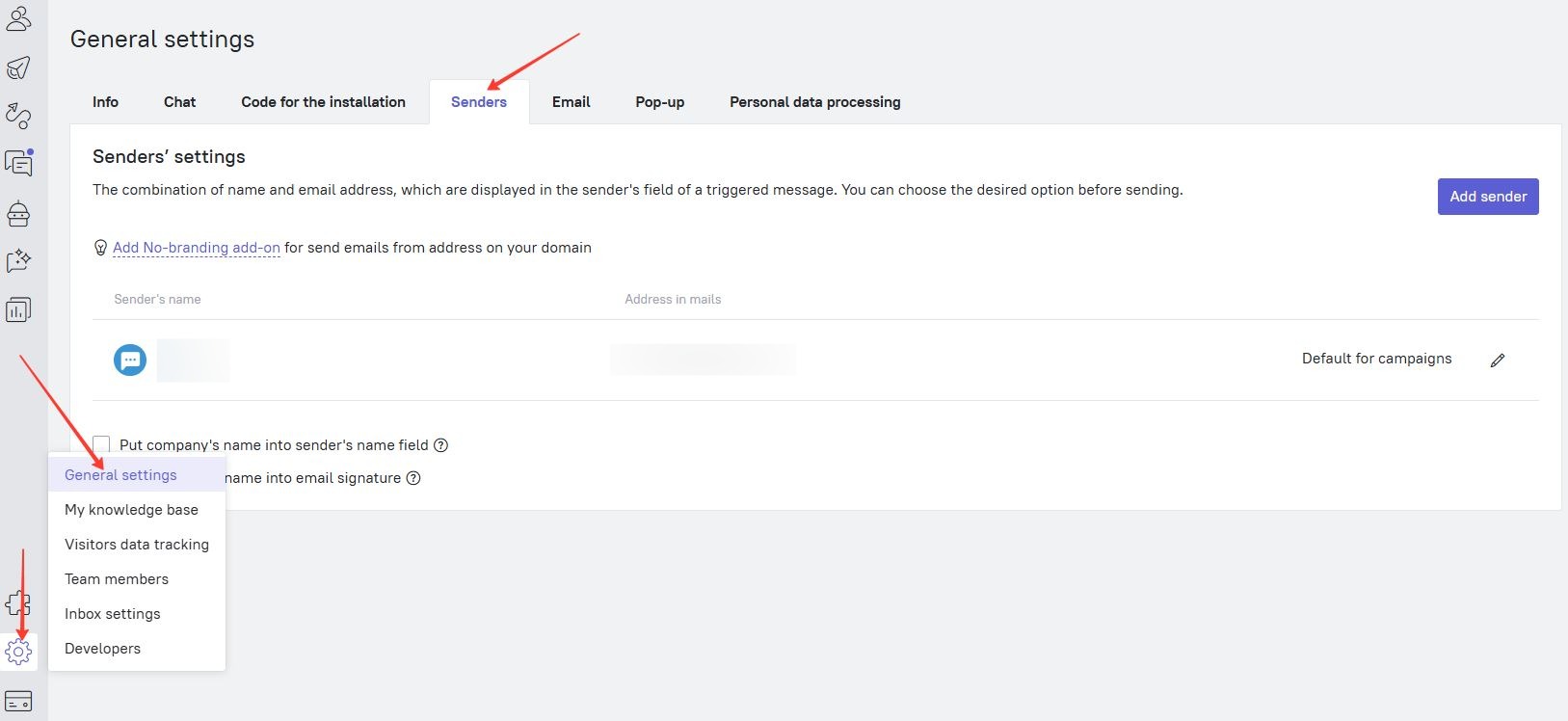
Here you can view existing addresses and create new sender profiles for different tasks. For example, you can create profiles for specific managers ("Alex from Support team"), for marketing campaigns ("Blog Editorial Team"), or for system notifications.
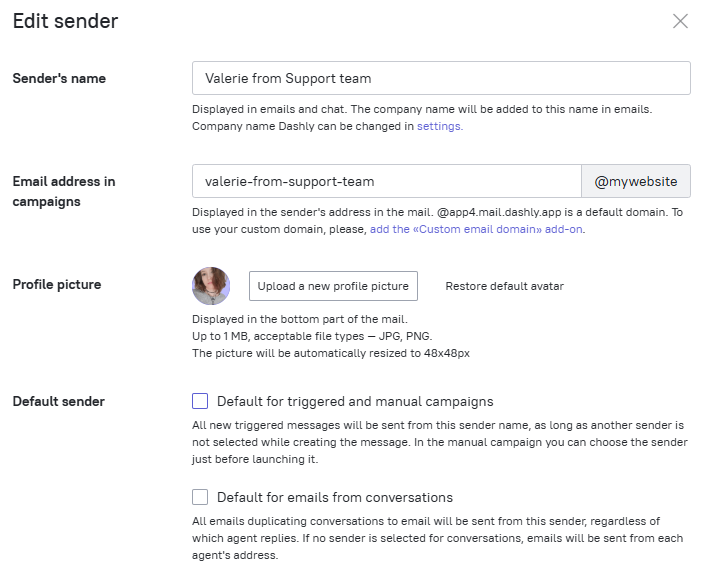
When creating or editing a sender profile, you will need to fill out several important fields:
Sender's name: How the customer will see you. Keep in mind an important detail: the system can automatically append your company name to this name in emails. For instance, if you set the name as "Head of support", the customer might see "Head of support from [company name]. The company name is specified in the general settings.
Sender address in campaigns: This is where you configure the email address itself. You create the left part (before the
@symbol) yourself (e.g.info,news). You can connect your own domain for the part after the@—this requires enabling the No Branding add-on. By default, without this add-on, campaigns are sent from a domain looking like@app123.mail-dashly.io.Profile picture: An employee's photo or a company logo. It will be displayed at the bottom of your emails, adding a personalized touch.
Default sender: We will discuss this section in more detail below.
Selecting a default sender
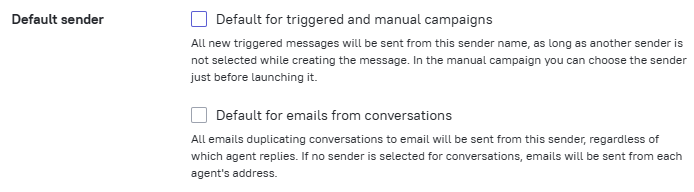
An important part of the profile settings is the "Default sender" block. Here you determine in which cases this address will be used automatically:
Default for triggered and manual campaigns. If you check this box, all new triggered messages will be sent from this name by default (unless you specify a different option when creating a specific trigger). In manual campaigns, this address will be pre-filled automatically, but you can always select a different sender from the list before sending.
Default for emails from conversations. This setting applies when a website chat conversation is forwarded (duplicated) to the customer's email.
If the box is checked: All duplicated emails from the chat will be sent from this single address, regardless of which agent is currently communicating with the customer.
If the box is unchecked: Emails will be sent from the technical email address of the specific agent handling the conversation. This address can be viewed and edited in the Agent Profile Settings.
You can assign both roles to the same profile or split them between different senders. For example, you could use no-reply@company.com for marketing campaigns and support@company.com for conversation messages.
If you uncheck the "Default for triggered and manual campaigns" box, you will need to assign this status to another sender (by selecting them from the drop-down list).
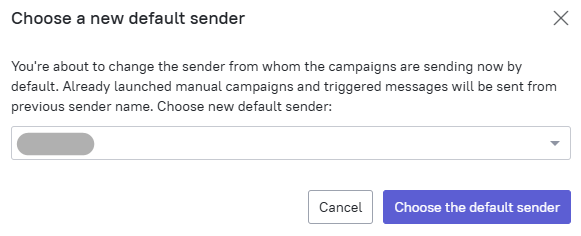
How the system selects a sender
Since the sender can be defined in multiple places, the system has several rules (priorities) to determine the final address for each specific email.
For manual and triggered campaigns
When sending an email, the system checks the settings in the following order:
"Default for campaigns" sender: Highest priority. If the option to set a single global sender is enabled in the account settings, the system sends all campaigns from this address. If the default sender was changed at some point, all campaigns created before the change will be sent on behalf of the previous sender (this can be changed manually in the message settings).
Are specific senders selected for the campaign (manual or triggered)? If a sender was manually selected within the campaign, the address chosen directly in the campaign editor is used.
For emails from conversations (notifications and duplicates)
"Default for emails from conversations" sender: If this role is assigned, all emails (replies from conversations, duplicated messages) are sent from this address.
Personal/technical agent address: If a default sender for conversations is not assigned, the email is sent from the technical email of the agent who replied in the chat.
Selecting a sender in a manual campaign
You can change the sender for each manual campaign during the content setup step. Look for the "Email from" dropdown menu.
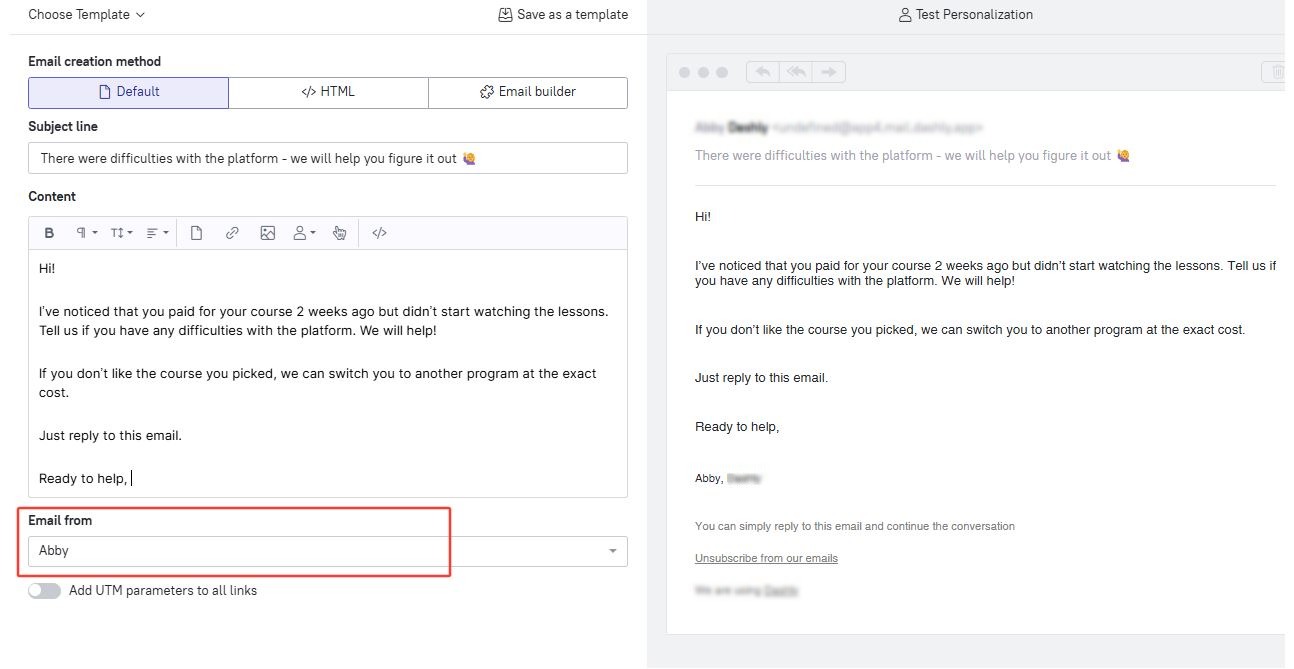
Selecting a sender in a triggered campaign
Similarly to manual campaigns, the sender for triggered campaigns (Email, Chat) is selected at the content creation stage using the "Message from" field.
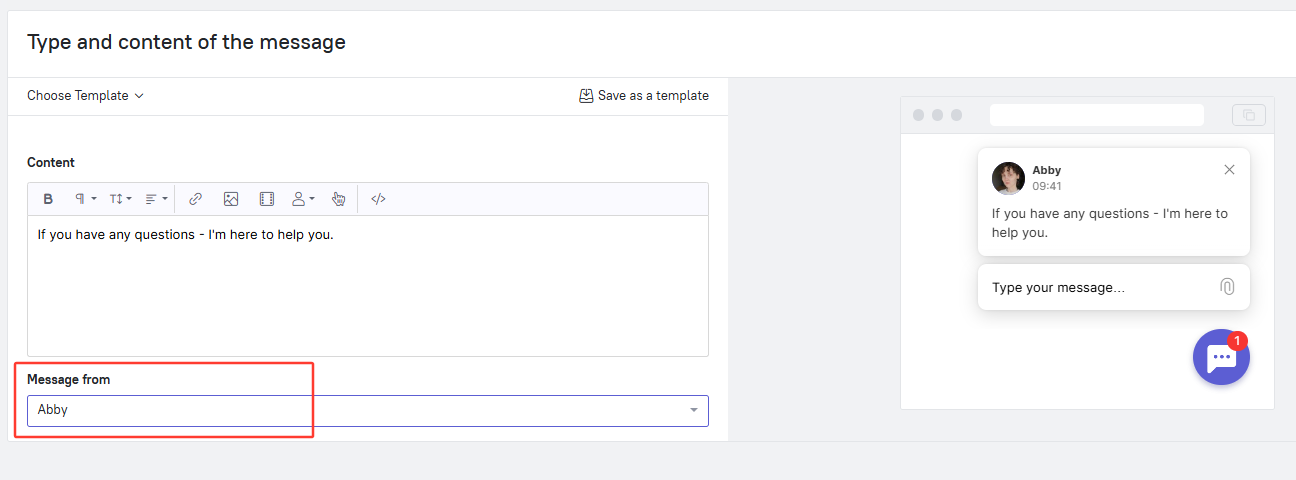
Adding the company name to the sender field and email signature
In the "Senders" section, you can enable or disable adding the company name to the email:
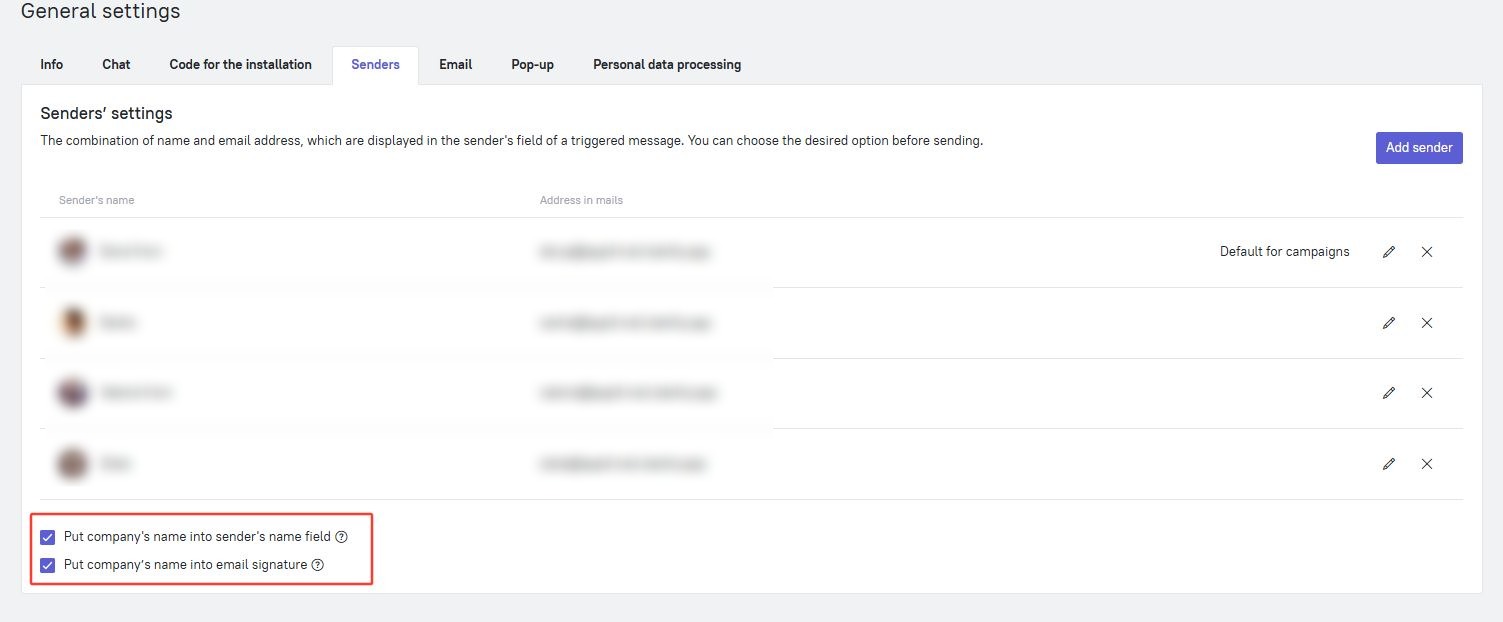
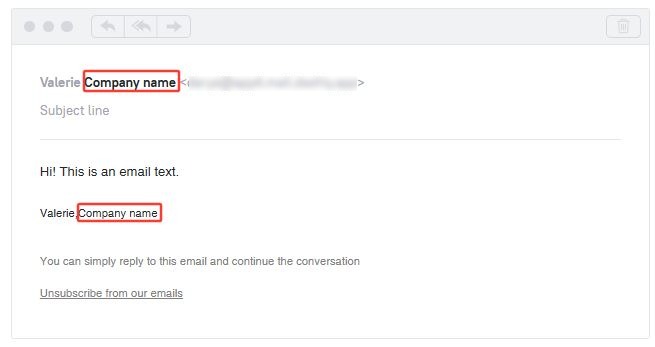
If both checkboxes are activated, the company name will be displayed in both the sender address line and directly below the sender's avatar in the message body: