Managing events and properties
As you continue working with your Dashly project, you may accumulate a large number of custom user properties and events. If some of these are no longer used or relevant, you might want to delete them or add descriptions to the active ones to make them easier to use across various scenarios.
You can manage all of this by going to Settings → Visitor Data Tracking → Configured events / Configured properties:
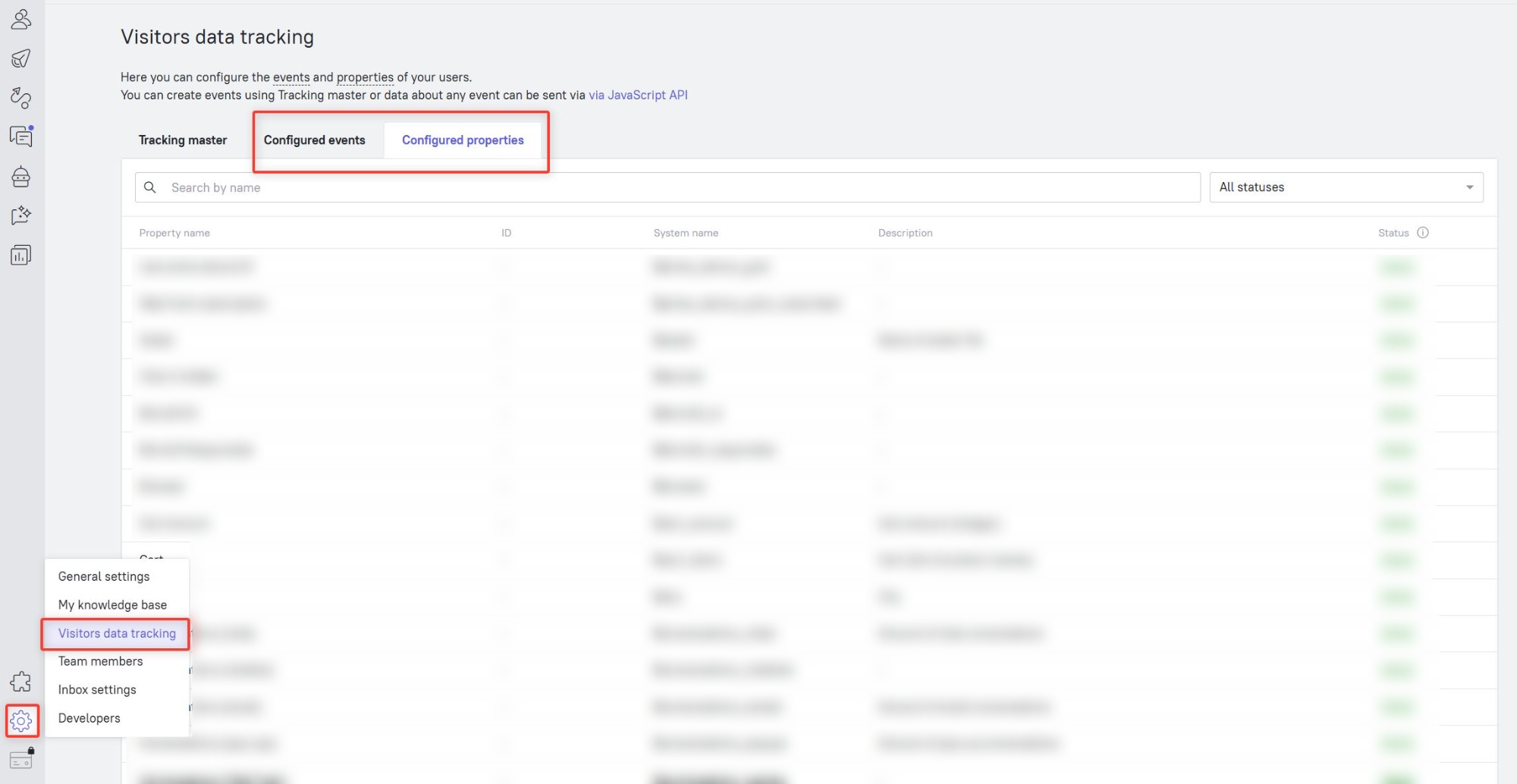
By navigating to the relevant tab, you'll see a list of all the properties or events that have ever been triggered in your project.
The Configured events tab includes the following columns:
Event name
Event ID
System name
Description
Score
Status
The Configured properties tab includes:
Property name
System name
Description
Status
System properties and events appear at the top of the list; their system names always begin with a $ symbol. Custom events do not have system names and are listed below the system ones.
Let's explore how to delete and edit data in this section. You can learn more about assigning scores to events in our dedicated article.
Deleting a custom event
Having too many events can strain the system and slow down performance. You can delete irrelevant or test events so they no longer clutter your view when building segments.
To do this, go to Settings -> Visitor Data Collection -> Configured events. Here you can view the full list of your custom events, as well as system events.
Clicking the three dots to the right of a custom event opens a menu with two options: Mark as deprecated and Delete.

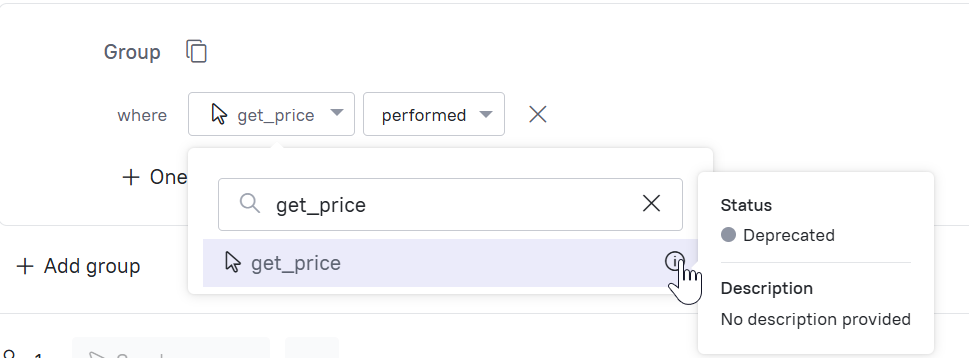
- Mark as deprecated: If you mark an event as deprecated, it won't be completely deleted from your project, but this status will be visible when you use it in segmentation. A deprecated event is not removed from your analytics, funnels, etc., but this status clearly signals to your team that it is obsolete and shouldn't be used in new setups.
- Delete: You can also choose to delete the event entirely:
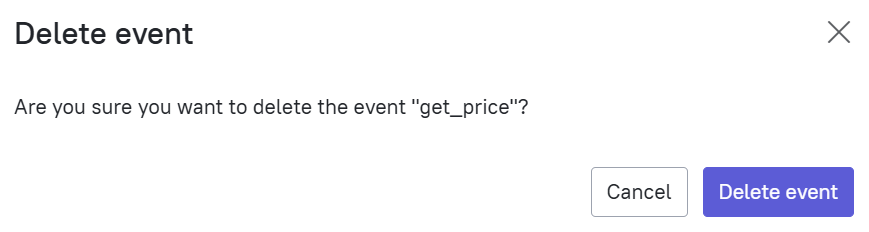
What happens when you delete an event:
Segments that included the deleted event will continue to function, but they will simply ignore that event (this also applies to message audiences).
T
rigger messages that relied on the deleted event as a trigger will stop sending.Funnels that included the deleted event will break and stop working.
Here is an example of what a funnel looks like if one of its step events has been deleted:
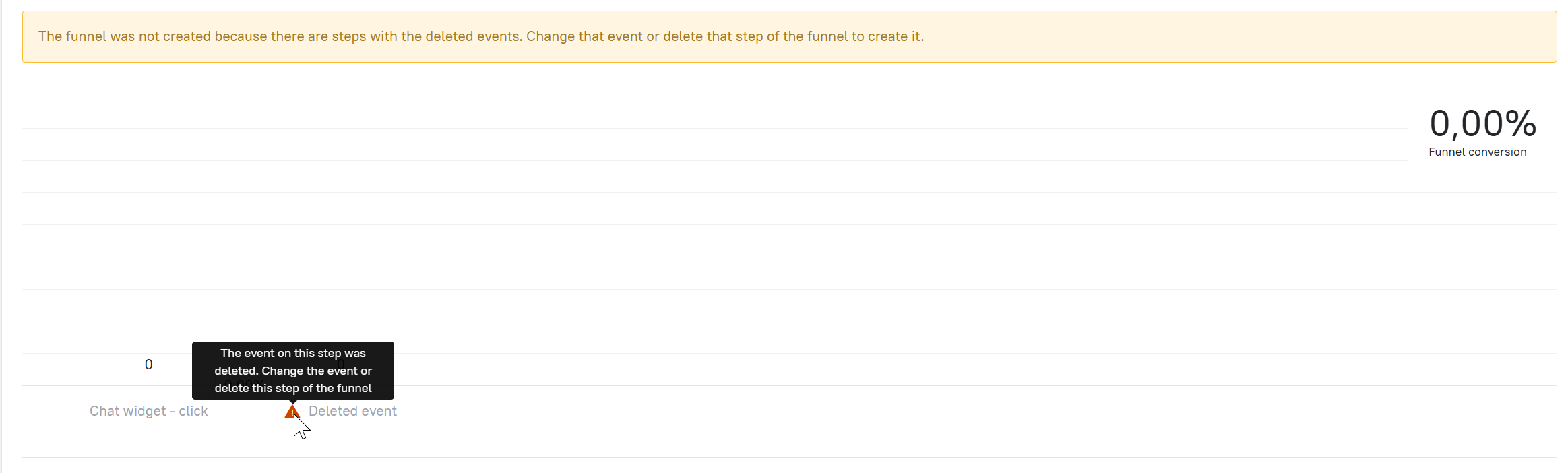 If a lead triggers this deleted event on your website again in the future, the event will reappear in your list and be tracked once more.
❗ Important: If you want to permanently delete an event, you must first disable its tracking source so it stops triggering altogether. The source might be the Data Tracking Master, a custom JavaScript snippet, or an API call. Events can also be generated by chatbots or triggered messages. Make sure to turn off the tracking at the source (e.g., remove the tracking script, delete the specific bot action, etc.).
Editing a custom event
To make custom events easier to work with, you can add notes or descriptions to them. Hover over the "Description" column and click the pencil icon:
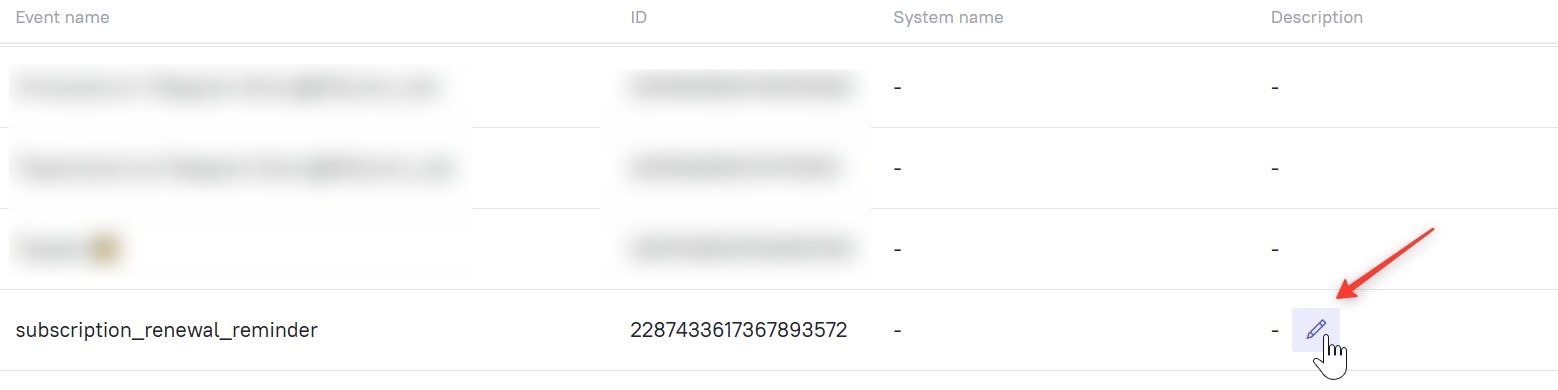
Enter your description (for example, explain where the event is triggered from) and click Save:
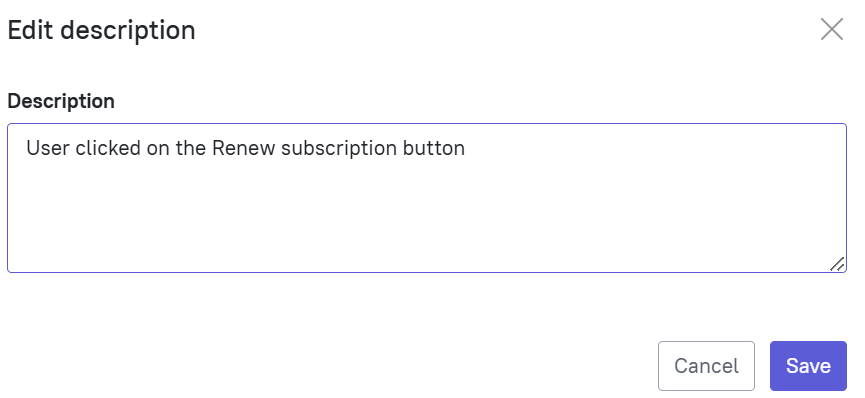
This description will appear in a tooltip when you hover over the event in your segmentation or audience filters:
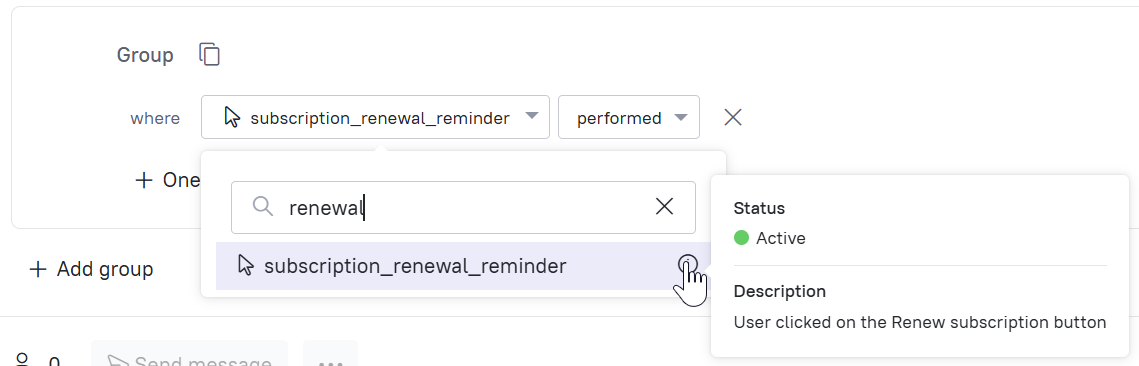
❗ Note: If you need to change an event's name, its tracking method, or when it triggers, you cannot simply edit it. You must set up a brand new event, mark the old one as "Deprecated," and then manually swap out the old event for the new one in your active scenarios.
Deleting a property
The "Configured properties" section allows you to completely remove irrelevant custom properties from your project.
Navigate to Settings -> Visitor Data Collection -> Configured properties. Here you can see the complete list of both custom and system properties.
Clicking the three dots to the right of a custom property opens a menu with two options: Mark as deprecated and Delete.

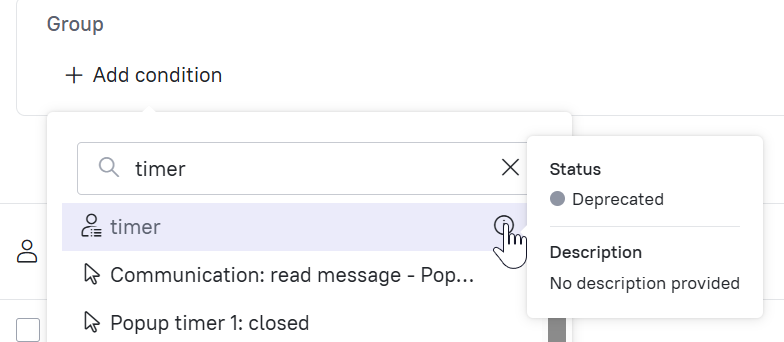
- Mark as deprecated: Similar to events, if you deprecate a property, it isn't fully removed from the project, but the "Deprecated" status will appear when you use it in segmentation. This signals that the property is obsolete and shouldn't be used for new campaigns:
- Delete: If you delete a property, it will no longer appear in the property dropdowns during segmentation or audience filtering. However, the property data will still remain inside individual lead cards.
❗ Important: To mass-delete a property directly from all lead cards, you need to use our open API methods (refer to the developer documentation). You will need to use the delete action in your operations parameter.
Your request payload should look something like this: {"op": "delete", "key": "Property name", "value": "0"}
Editing a custom property
To clarify what your custom properties represent, you can add descriptions to them as well. Hover over the "Description" column and click the pencil icon:
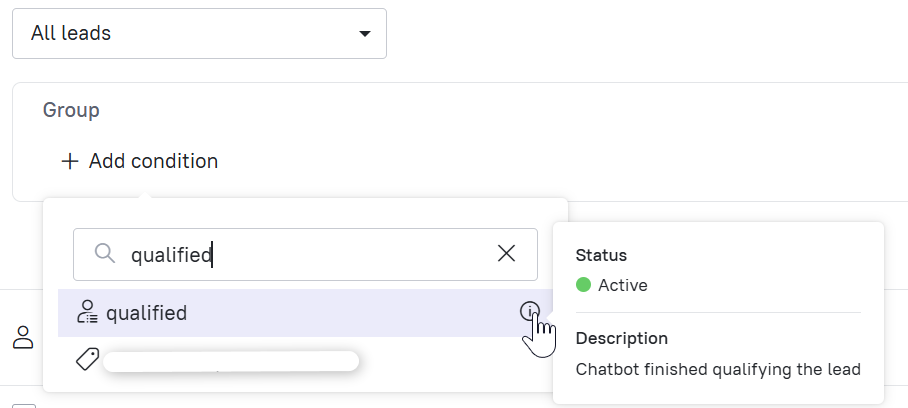
 Write a brief description (for example, note when it gets recorded and what the data means) and hit Save. This description will be visible on hover when selecting the property in segmentation or audience filters:
❗ Note: Just like with events, if you need to change a property's name or how it is recorded, you must create a new property, mark the old one as "Deprecated," and then update your scenarios to use the new property.
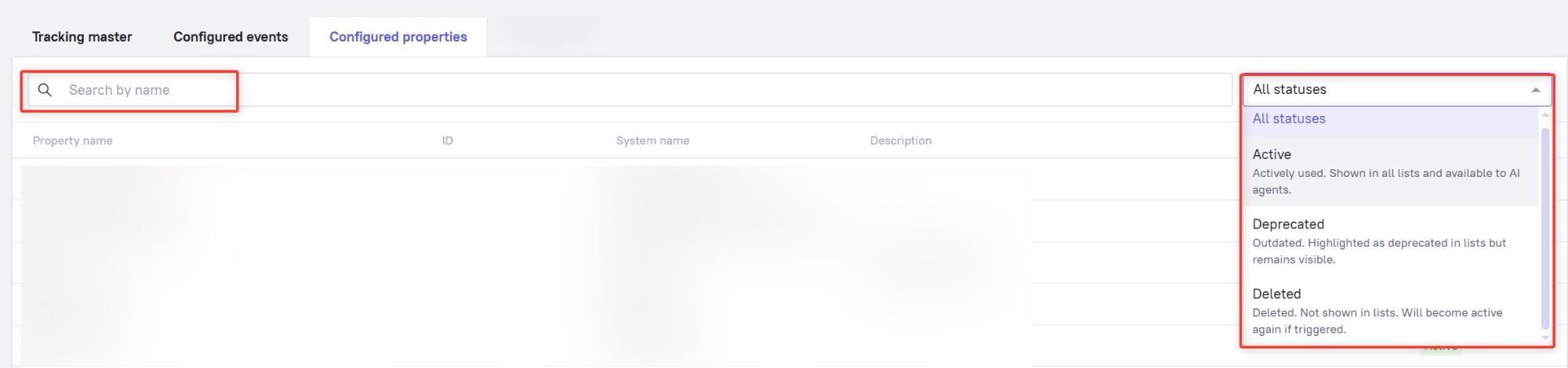
For faster navigation, you can use the status filters on the right and the search bar on the left to quickly find specific properties or events by name: