Advanced Security add-on
You can connect the Security add-on to your project to mitigate the risk of lead data leaks, conduct investigations if a leak occurs, and ensure regulatory compliance.
Once the add-on is activated, you will be able to:
Track the export of personal data from your lead database
Monitor logins from suspicious IP addresses
Investigate who accessed personal communications and scenario settings, and when
What's included in the add-on:
Two-factor authentication (2FA) via a password and a verification code when logging into the project;
Logging of all logins to your Dashly account along with the IP addresses they were made from;
User activity logging (e.g., exporting leads, sending manual campaigns, changing access permissions, adding team members, etc.) with the option to export this data;
Searching and exporting events by date;
Personal request limits, including automatic blocking if these limits are exceeded.
To connect the add-on, please contact our support team.
List of actions logged by the add-on
Authorization (Log in)
Password recovery
Password change
Sending an invitation
Team member accepting an invitation
Removing a team member
Changing a team member's permissions
Exporting leads
Importing leads
Bulk messaging (manual campaigns)
Creating a triggered message
Creating a bot
Bulk hiding of lead cards
Saving JavaScript code in the Visitors data tracking section
Creating an integration
Deleting an integration
Generating an API key
Deleting an API key
Creating a conversation tag
Deleting a conversation tag
Modifying access settings for members of Dashly's support
Creating a Knowledge Base article
Editing a Knowledge Base article (including publishing, indexing, and moving)
Deleting a Knowledge Base article
Working with the Activity Log
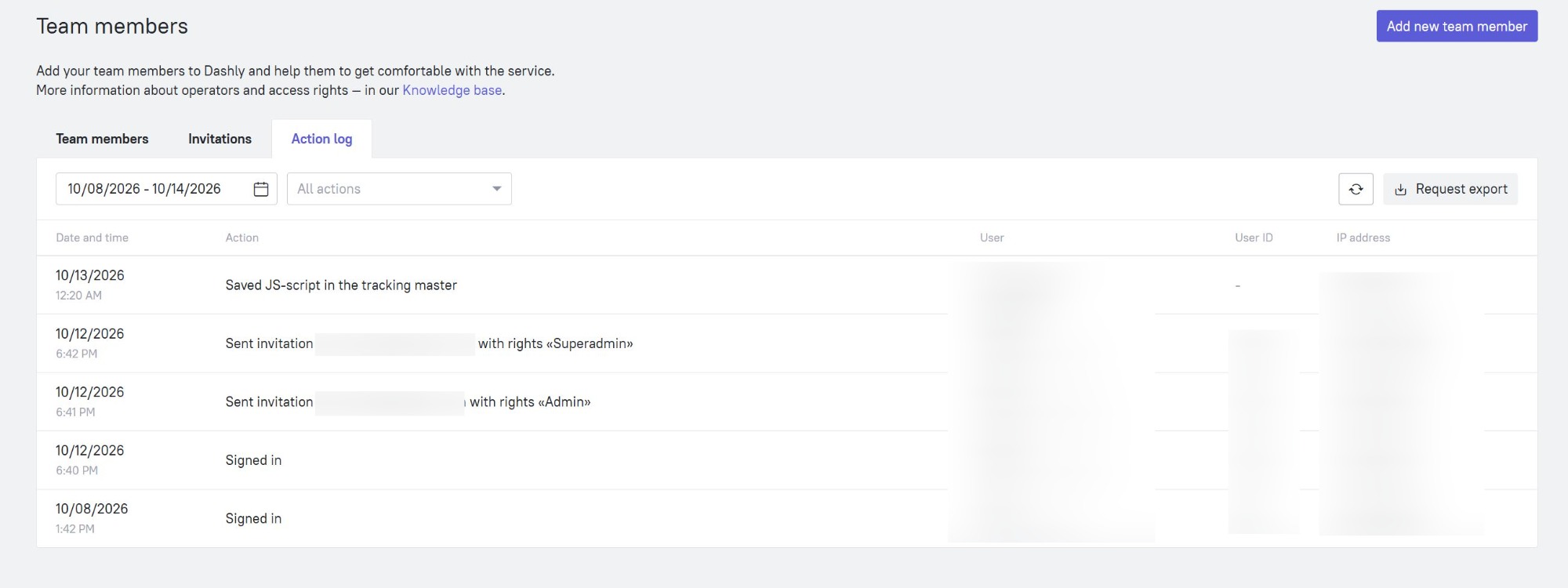
All of the actions listed above are recorded in your personal dashboard from the moment the module is activated. You can view the log by navigating to Settings → Team Management → Activity Log:
Here you will see the date the action was performed, the action itself, the employee's name and email, their internal ID, and the IP address from which the action was performed. By clicking the "Request export" button, you can reach out to our support team and get a reply with a CSV export of your log.