Using the Instagram integration, you can answer messages sent to your Instagram Direct. All of the messages sent to your Instagram account will appear in your Dashly Inbox and the users who send messages to your Instagram Direct will be added to your lead database. Their Dashly user card will contain their Instagram profile picture and the name they've set up in Instagram. See a quick overview in this video: https://www.youtube.com/watch?v=KEB4dFvGWAY
You can tag any conversation started from Instagram and see analytics on them in the Team performance report section.
You can create several Inbox channels to accept messages from different Instagram accounts. It will help your chat managers quickly identify which one of your Instagram Direct accounts new messages come from.
The Instagram integration is made with Instagram API, which keeps your Instagram account safe from getting blocked for using our integration.
How the integration works
1. User sends a message to your Instagram Direct, reacts to your Story or mentions your business account in a Story;
2. This gets sent to your Dashly Inbox as a message;
3. You reply in your Dashly Inbox;
4. User receives your reply in Instagram Direct, they will see it as a message sent from your Instagram Direct account.
❗ Important: Instagram has a limit on receiving messages from API integrations. The number of messages you can send to a user during the first 24 hours after their last message is unlimited, but you can only send them one message after the 24 hour period has passed.
Integration features
Replying to messages sent to your Instagram Direct with text
Replying to messages sent to your Instagram Direct with images and emoji
A separate channel for messages received from Instagram Direct in your Dashly Inbox
Replying to Instagram Stories
Receiving reactions to your Instagram Stories
Receiving tags applied to Instagram Stories
Receiving posts sent to your Instagram Direct
Setting Up Instagram Integration with Dashly
Connecting Instagram to Dashly allows you to manage all your Direct Messages (DMs), Mentions, and Story replies directly from the Dashly Inbox.
❗ Important: The Facebook account used to set up the integration must have a verified email address set as its primary contact.
Step 1: Prepare your Instagram Account
Before connecting to Dashly, ensure your Instagram settings allow for third-party integration:
Switch to a Professional Account: Your Instagram must be a Business or Creator account. Personal accounts do not support integration.
Allow Access to Messages: Open the Instagram app and go to Settings and Privacy.
Select Messages and Story Replies -> Message Controls.
Scroll to the bottom and switch on the "Allow access to messages" option.
Step 2: Connect Instagram to your Facebook Page
Your Instagram account must be linked to a Facebook Page that you manage. Meta now uses the New Pages Experience for this. Here's how: https://www.facebook.com/business/help/898752960195806?id=419087378825961
Note: You must have "Full Control" (Administrator access) of the Facebook Page to complete this step. Here's how to give someone access to a Page: https://www.facebook.com/business/help/152071822895768
Step 3: Enable the Integration in Dashly
Log into Dashly and go to the Integrations section.
Find Instagram and click "Configure."
Click "Authorize via Facebook" and log into the Facebook account that manages your Page.
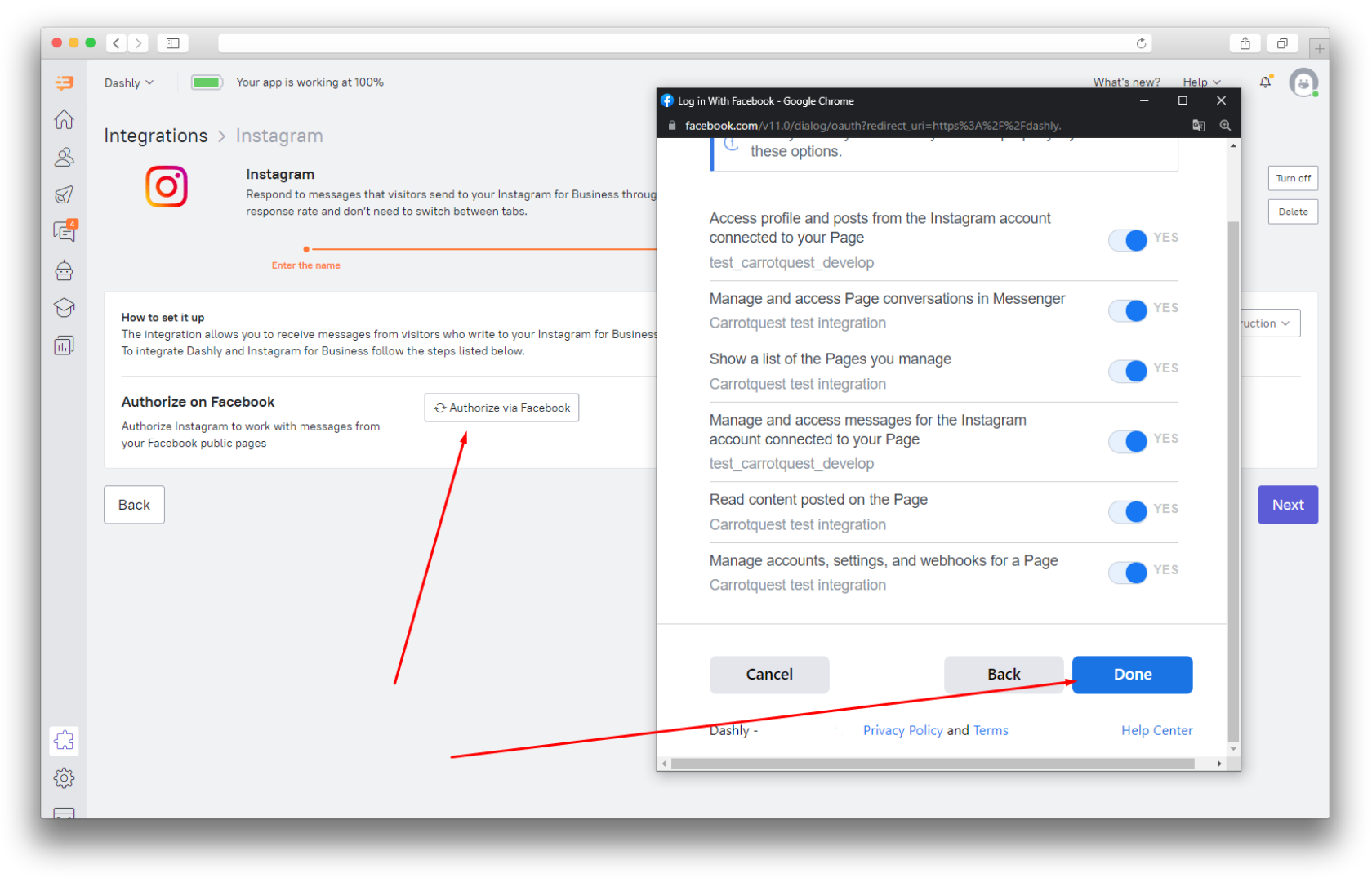
Grant Permissions: A list of permissions will appear. Ensure all toggles are switched to "On." Disabling even one permission may prevent messages from syncing.
Select the specific Pages/Instagram accounts you want to connect and click Save.
When is my integration all set?
Once configured, send a test Direct Message from a different Instagram account to your Business account. If the message appears in the Dashly Inbox section, your integration is fully functional.
❗ Important: check if you can see all the connected Facebook pages on 'Choose pages' step. Activate the ones connected to your Instagram account: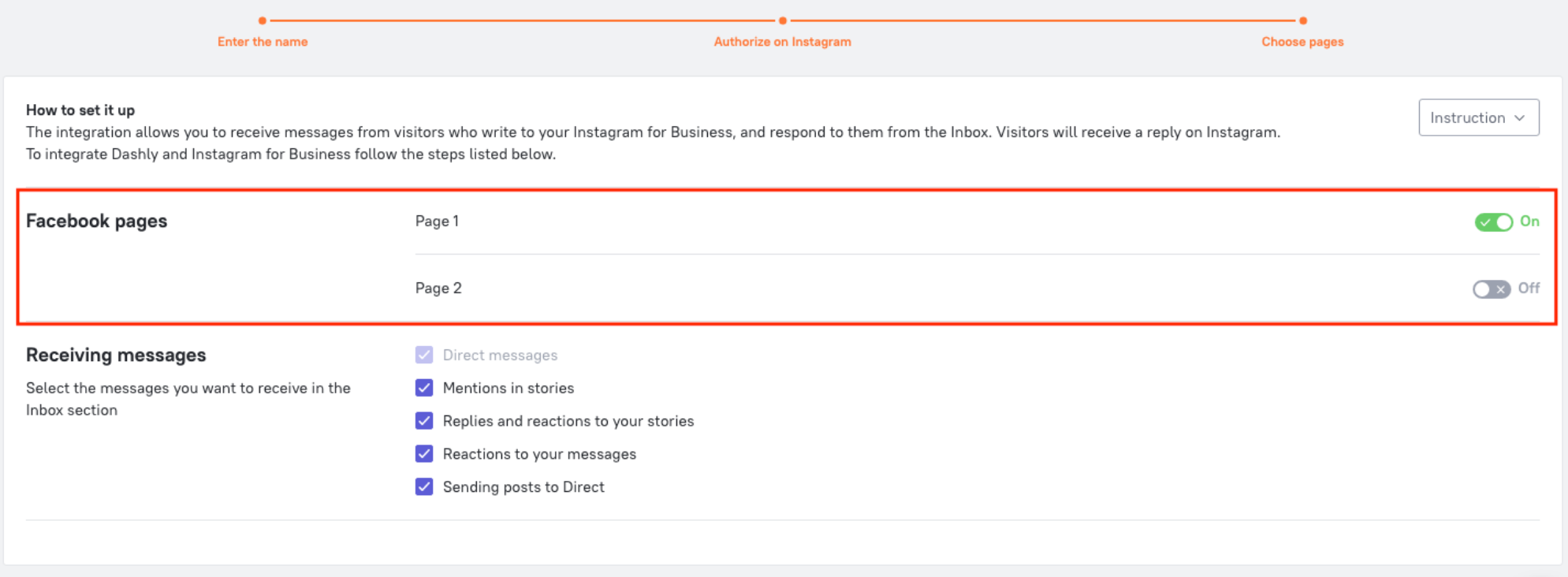
Troubleshooting: If messages are not appearing in Dashly
If you have connected your accounts but messages are not being sent or received, please follow these steps to verify your Meta configuration and ensure a deep connection between your Facebook and Instagram profiles.
1. Check Permissions in Meta Business Suite
First, ensure that you have administrative rights over the assets. To verify:
Go to Meta Business Suite Settings > Business Users: https://business.facebook.com/latest/settings/business_users
Select your name from the list and ensure you have Full Control toggle enabled over the specific Facebook Page you are connecting.
2. Verify and Re-establish the Account Links in Meta Ecosystem
Sometimes the connection between platforms appears active on the surface but is missing deep cross-platform permissions required for the Dashly API. Follow this sequence to fix it:
Step 1: Link the Profiles via Facebook Page Settings
Navigate directly to your Facebook Page's linked accounts panel: https://www.facebook.com/settings/?tab=linked_profiles
Under the Linked accounts tab, look at the Instagram section. You should see your professional Instagram username listed here as connected. If no account is visible, click to connect and authenticate your professional Instagram profile.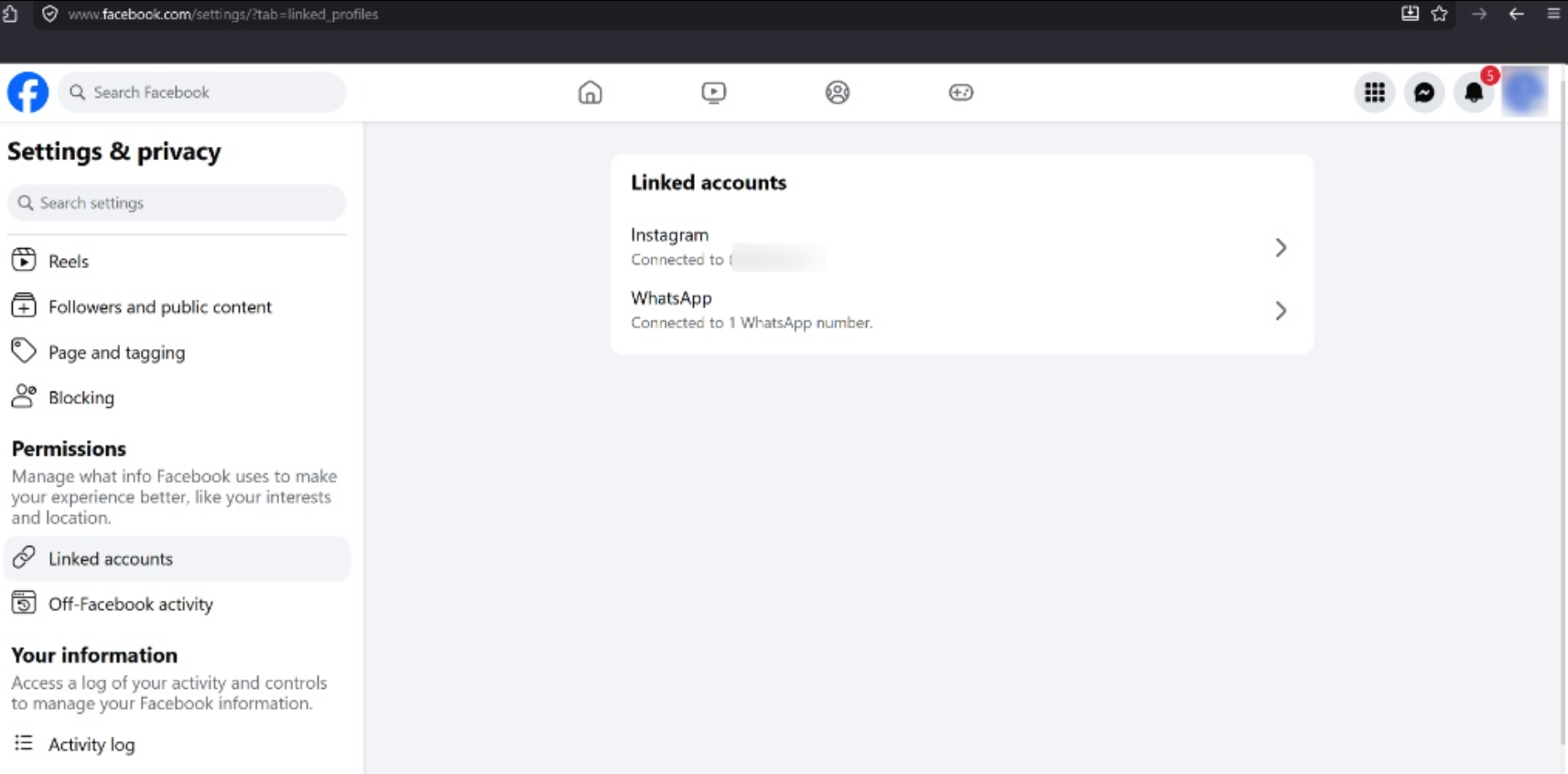
Step 2: Check the Unified Meta Accounts Center
Open the main Account Settings panel for your Meta identities: https://accountscenter.instagram.com/profiles/?theme=dark
Look closely at the Profiles section. Both your personal Facebook profile and your Instagram profile must be grouped together under this same Accounts Center dashboard. Additionally, look directly below at the Pages you manage section — your connected Facebook business page must be listed here as well.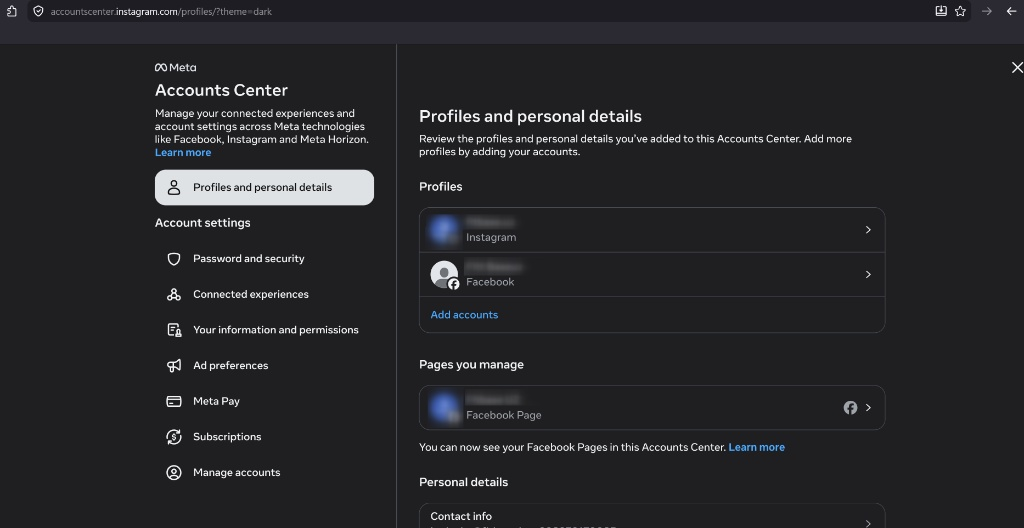
Step 3: Enable Cross-Posting and Content Sharing Permissions
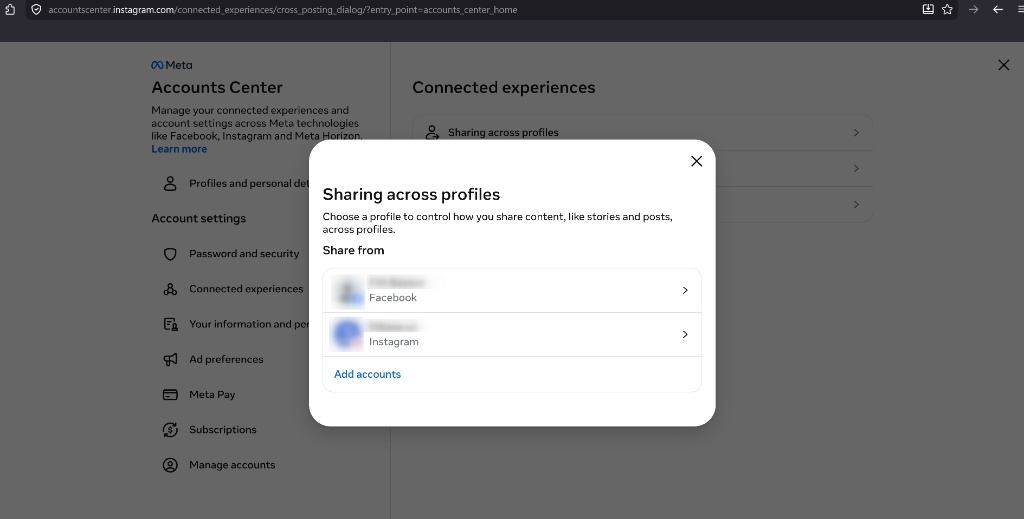
Go to the cross-platform connected experiences menu:
Click on Sharing across profiles. Here, you need to make sure that data sharing and content flows are allowed between your Facebook page/profile and your Instagram account. If these cross-platform rights are blocked or unconfigured, Meta will restrict the background data flow, preventing Dashly webhooks from capturing incoming direct messages.
Step 4: Confirm Business Portfolio Access
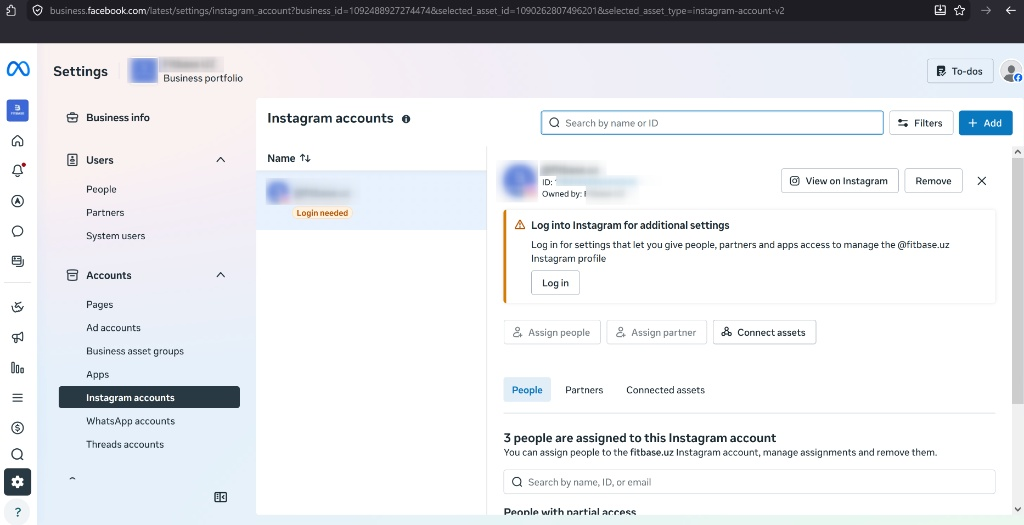
Finally, verify that the Instagram asset has successfully propagated to your Meta Business settings: https://business.facebook.com/latest/settings/instagram_account
Under the Accounts menu on the left-hand side, click on Instagram accounts. This page is used to confirm that the integration has successfully gone through. Your target Instagram profile should be visible in the central list. If the profile appears here, your business portfolio has correctly recognized the asset, and the setup is complete. If the section is completely empty, it means one of the previous linking steps was missed or did not sync.
Still not working? Try this final step:
If you have verified every setting above and messages are still missing, you may need to whitelist Dashly's domains within the legacy Facebook settings:
Switch your active Facebook profile to your business Page.
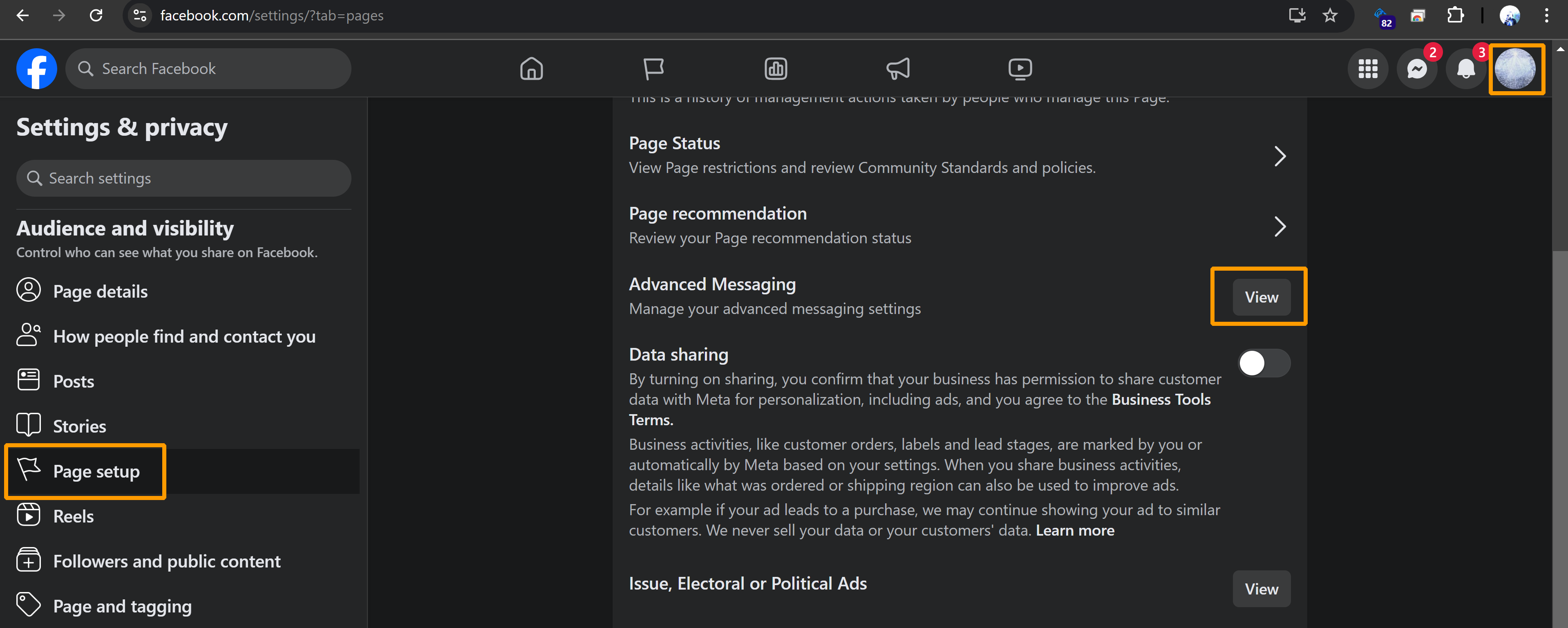
Go to Page Setup → Advanced Messaging.
Scroll down to the Whitelisted domains section, type
https://www.dashly.io/, and click Add to save your changes.